Search this site..

Showing posts with label computer technology. Show all posts

Download Steam Client for Mac

steam client mac

Steam gaming client for Mac finally came out of beta and is now available for free download from the Steam website. With this Apple Mac users will be able to enjoy huge number of game titles that will eventually become available to them, and to celebrate the launch of Stem client for Mac, Steam is giving away free download of PORTAL game to anyone downloading their Client on Mac OS X until May 24th.

steam client portal free

With Steam released for Mac, gamers can now purchase their games online and can play it either on Windows PC or on Mac with their single Steam ID. At launch there are already 60+ titles ready for download that you can enjoy on your Mac. Steam has also announced that it will be releasing a new set of games compatible with Mac every Wednesday for the next few weeks.

Download Steam Client for Mac OS X

Direct Download Link

Download Link for Free Portal for Mac

Minimum Requirements for Steam for Mac

Intel Based Mac with Mac OS X version Leopard 10.5.8, Snow Leopard 10.6.3 or later

1GB Hard disk space and a recommended 2 button mouse.

If you are a Windows User Download Steam Client for Windows

Apple Intros New MacBook Pro Laptops 2010

macbookpro- 2010

Apple has recently refreshed its MacBook Pro lineup with latest Intel hardware, the new MacBooks Pro 2010 models will be featuring the new Intel Core i5 and i7 processors, all the models will be having 4 GB DDR3 RAM, Apple has also uppped the battery life in newer MacBook Pro models, now the 13 inch MacBook Pro will be having 10 hours of battery whereas its siblings 15” and 17” MacBook Pro will be having 8 to 9 hours of battery life.

Features and Price of New MacBook Pro Laptops 2010 (Base Models)

MacBook Pro 13 inch $1,199 Model

  • 13.3 inch LED Display
  • 2.4 GHz C2D Processor
  • 4GB DDR3 RAM
  • NVIDIA GeForce 320M Graphics
  • 250GB HDD
  • 8X Slot Load DVD Burner
  • MiniDisplay port
  • 2 USB Ports
  • 802.11n + Bluetooth 2.1 EDR
  • iSight Video Camera
  • 63.4 Watt Hour Battery
  • 10 Hours Battery Life

MacBook Pro 15 inch $1,799 Model

  • 15.4 inch LED Display
  • 2.4 GHz Intel Core i5 Processor
  • 4GB DDR3 RAM
  • NVIDIA GeForce GT330M Discrete Graphics 256MB VRAM – Intel HD Graphics – with switching on the fly
  • 320 GB HDD
  • MiniDisplay port
  • 8X Slot Load DVD Burner
  • 2 USB Ports
  • iSight Video Camera
  • 802.11n + Bluetooth 2.1 EDR
  • 85 Watt Hour Battery
  • 8-9 Hours Battery Life

MacBook Pro 17 inch $2,299 Model

  • 17 inch LED Display
  • 2.53 GHz Intel Core i5 Processor
  • 4GB DDR3 RAM
  • NVIDIA GeForce GT330M Discrete Graphics 512 VRAM with Intel HD Graphics – switching on the fly
  • 500 GB HDD with Sudden Motion Sensor
  • MiniDisplay port
  • 8X Slot Load DVD Burner
  • 2 USB Ports
  • iSight Video Camera
  • 802.11n + Bluetooth 2.1 EDR
  • 85 Watt Hour Battery
  • 8-9 Hours Battery Life

All new MacBook Pro models now sport multi-touch trackpad with inertial scrolling similar to iPhone for browsing through photos and documents.

The entry level 13 inch MacBook Pro will only be sporting Intel Core2duo processors, the base 15 and 17 inch models feature Core i5 Processors with built to order configuration options of Intel Core i7, 8 GB DDR3 RAM, SSD Drives and Antiglare display.

HP's Windows 7 Slate Device Revealed by Steve Ballmer

It's not Courier, but HP's rumored slate PC is here, now. Steve Ballmer and his hardware specialist Ryan Asdourian just showed it off, and man is it cute. Updated with VIDEO

Update:Adrian just spotted this official video:

"They're more powerful than a phone and almost as powerful as a PC. Perfect for reading, surfing the web and taking entertainment on the go," said Ballmer at his CES 2010 opening keynote. He says that it will be available this year.

HP says they'll provide information on the slate after the keynote, but wouldn't say anything in the meantime. We're calling it a "slate"—well, Microsoft is calling it a slate, to differentiate from the pen-and-screen dealy that Bill Gates intro'd in 2001—but that's not its name.

It's a Windows 7 touch device, so it's nice in an accessible, netbooky (yeah, I'm guessing relatively cheap) context. But it's not exactly the Courier we have lusted after from Microsoft in our dreams (and waking hours).

Here you can see it in its various modes, movie mode, ebook mode and PC mode:

Fun fact: Asdourian, shown above with Ballmer, moonlights as a (or the) Seahawks mascot.


Video of Desktop Super Computer: FASTRA II

fastra_small

Researchers or I would say geeks at the Antwerp University have created a desktop supercomputer FASTRA II utilizing six NVIDIA GTX295 dual-GPU cards and one GTX 275 single GPU card to create a machine that most of the gamers haven’t even dreamt of yet. FASTRA II churns out 12Teraflops and uses ASUS motherboard with 7 PCI express slots having custom BIOS provided by Asus, 12GB DDR3 memory, multiple power supplies, Core i7, 1TB Samsung HDD and a little modified Lian-Li PC case. In case you are wondering, they have built this machine for their research in 3D imaging using high resolution scanner images, watch the video after the jump for more details.

Watch this nicely made video of FASTRA II

fastra_small

Dell Unveils Zino HD Mini PC - Inspiron 400

dell_inspiron_zino_HD_400

Dell has officially released their Zino HD Mini PCs which can really make your desktop look more spacious, the small form factor and power that can run your HDTVs with the HD capable inbuilt graphics or optional ATI Graphics card makes it a strong contender for the Media Center PCs, and as its a DELL you can also customize it by adding more HDD space, more powerful processor and dedicated ATI graphics, the base model starts at $229 with 1.6 GHz AMD Athlon, 2GB RAM, 250GB HDD, Microsoft Vista and no Wi-Fi.

A much better $399 configuration is below:

  • AMD Athlon 2850e – 1.8 GHz
  • Windows 7 Home Premium
  • 8X DVD+/-RW Drive
  • 3GB DDR2 800MHz- Dual Channel
  • 320GB 7200 RPM SATA Hard Drive
  • Integrated ATI Radeon HD3200 Graphics
  • Dell 1397 802.11 b/g Wireless Card

Same configuration with 4 GB RAM and 500GB HDD and ATI Radeon HD 4330 512 MB Graphics card is available for $535.

How to Manage Multiple Displays with ATI Catalyst Control Center

Recently I’ve switched to dual monitor setup to improve productivity, and additional LG Full HDTV for movies, I’ve three screens: 2 No.s of Dell 2209WA and third is a 42” Full HD LG LH70YR and I’ve connected all these three screens to the Palit ATI 4870 Dual Sonic graphics card using two DVI port for Dell Monitors and TV with RGB Analog, here I will tell you how to manage multiple screens with ATI Catalyst Control Center, But there is one catch you can only drive 2 screens at a time with 48xx series of cards, the current generation of cards like 5850 and 5870 could run upto 3-6 screens at a time, the procedure is same.

After connecting the displays fire up ATI CCC (Catalyst Control Center), Go to Advanced Settings

ATI Catalyst Control Center- advanced

It will open this screen

image

Notice the Three screens “Desktop 1” , “Desktop 2” and “Attached Displays Currently Disabled”

Here Desktop 1 and Desktop 2 are my two Dell 2209WA monitors and disabled display is the LG TV.

How to Swap Display using Catalyst Control Center – Managing dual, triple screen setups

Now there is no proper documentation for switching displays without turning off the displays and changing connections, but I’ve found a way, all you have to do is click –> drag the disabled display onto the “Desktop 2” , a message will popup “Swap Devices” click on the that, the second desktop will now turned off and third display will come to life. Yes it is simple as that.

swaping displays

Desktop 2 in red is the LG TV, one 2209wa is now disabled. I am using extended display option, so Desktop 1 always remain my primary display and I switch between LGTV and second Dell monitor, when switching from dell to LGTV I have to change the resolution to 1080p for LGTV and while switching back it automatically detects resolution of Dell monitor, maybe this has to do with analog and digital connections.

ccc swap displays

If you have 58xx series graphics card you can manage multiple displays even more than 3 displays this way, a right click on respective “Desktop” inside CCC will give you more options like cloning desktop, rotating deskop, stretching desktop etc.

Getting a computer repaired in Essex

broken_computerIt’s something that’s happened to us all. Our lovely computers are working fine for years, providing enjoyment and keeping the whole family entertained. Then suddenly it starts playing up, things don’t work like they used to, or worse still it breaks completely and won’t start!

It could be anything, from getting infected with a virus, or Windows might be going abnormally slow or throwing up loads of error messages.

The first thing that enters our mind is “great, now I’ll have to get it fixed”. You’ll then start going through names of friends and family that might have a bit of technical knowledge in the hope they can help you out.

Sometimes you’ll get lucky, there will be someone that takes a look and manages to get it working again. It might not get done in the most elegant way, but it seems to work and that will be all that matters.

But, allow us to introduce an alternative :)

By getting a professional computer technician to diagnose and solve your computer issues, it could save you time and hassle in the future! Although having a friend or family member solve your computer problems might keep you happy in the short term, if they don’t know exactly what they are doing, it could lead to problems popping up further down the line.broken_computer

Now, being a Technology company that provides a computer repair service, we know it’s not going to be a massive shock to you that that we would recommend this.

The fact of the matter is however, thanks to our fantastic pricing policy it’s never been cheaper to get a professional technician to fix your problems, or remove that nasty virus. It’s just £35! Nothing else. That’s no call out charge, no hourly rate, just one simple fee to get the job done professionally. Even if it takes us 5 hours, we’ll still only charge £35.

So why is a better to use a professional service? Well here’s a few reasons:

  • Professional technicians have experience. They can get the job done quickly and correctly.
  • They can find out how the problem started and prevent it from happening again.
  • As part of the service, you’re entire computer can be checked over to find any other problems that might pop up soon
  • They’re experts and speeding up slow computers. Not only will you be left with a fully working computer, but there’s a good chance it’ll be running a lot faster too.

aboutvellaIf you live in within a 30 mile radius of Colchester, we will personally come to your own home at a time to suit you and get the whole thing done there and then. So this means we can repair your PC if you live in places like Colchester, Chelmsford, Clacton and even Ipswich. Evening and weekends are included at no extra cost!

And what if we can’t fix the problem you’re having? We’ll you don’t need to worry about that either. We only charge for fixing problems, not for simply looking at it and calling it unfixable. So if we can’t fix your problem we won’t charge a penny, not even a call out fee.

If we’ve managed to convince you that “professional” is the way to go, we’ve tried to make it as easy as possible for you to get in contact with us. All our contact details can be found at our website, or if you’d like to just get straight to the point we have an on-line booking request form that you can fill in.

As a final note, Vella Technology is a relatively new company, and so understandably you might be a little worried about “the unknown!”. Hopefully our pricing and no fix no fee policy helps to give you confidence in our services, but we thought we’d share an email we got from a recent customer to help guide you:

“Just wanted to say thank you again for your prompt assistance last night, our laptop seems to be working much quicker now. We found Richard extremely professional, helpful and polite – I only wish there were more businesses like you around.
I really hope your new business succeeds and we shall certainly be recommending you.
Many thanks again.”

Until next time, happy computing!

Computer Technology

http://blog.itechnsk.com/wp-content/uploads/2009/04/computer-virus-480.jpgDo you know what is inside your computer? Maybe you peeked when the service technician was installing something for you. When you first open up the CPU and look inside, a computer is a very threatening machine. But once you know about the different parts that make up a complete computer it gets a lot easier. Today's computers consist of around eight main components; some of the advanced computers might have a few more components. What are these eight main components and what are they used for? We will start with beginner level details to get you started.http://blog.itechnsk.com/wp-content/uploads/2009/04/computer-virus-480.jpg

First is the Power Supply. The power supply is used to provide electricity to all of the components in your computer. It is usually a rectangular box and is usually positioned in one of the corners of the computer. To find it for sure, look to see where the power cable plugs into the back of the computer and you have found the power supply. Most power supplies today are calculated in wattage and come in 50 watt increments (500 watt, 550, 600, etc

Second is the Motherboard. All of the components are connected into the motherboard; it doesn't mean that it is the brain of the computer. Yes it holds the brain and helps it act together with all the other components of the machine.

The third and a very important component of a computer is the CPU (Central Processing Unit), Known as the brain of the computer and nothing is going to happen without it. All major calculation performed by a computer are carried out inside its CPU. It is also responsible for activating and controlling the operations of other units of the system. The faster the CPU can do these calculations and give the correct answers, the faster the computer runs for the user. CPUs are now measured in gigahertz (Ghz) and they are at present up to our 3.8GHz or faster

A fourth component is the RAM (Random Access Memory). RAM is used as momentary working storage for the computer. We have different types of RAM memory with different speed, but it should match with your motherboard so that it can work properly. The more RAM you have in your computer, the better your computer will work.

The fifth component is the Hard drive. This is where you can store everything. Our material on the hard drive includes the operating system (Windows XP, etc), games, and different types of software, etc. over the year the capacity of the hard drive is continuously improving and in the interval of few years its capacity have gone from around 20MB to over 500GB and more. So you can store a lot more information on your computer such as games, pictures, videos, applications, and more.

Sixth component is Cooling fans. Often most computers come with one cooling fan or it might have several. Its help to cool down the heat generated by others components, Such as power supply, the CPU, and some high-end video cards. The work of all of your cooling fans is to get this heat out of the case so that nothing overheats and breaks. While most of the noise you hear coming from a computer can be credited to the cooling fans, remember to be tolerant. The cooling fan is your friend!

Our Seventh and final component is the mixture of several different devices. These are the Cd-rom, DVD drives, floppy Drive and Backup devices such as external hard drive.

Latest compute processor

Latest computer processor provides high speed processing, great performance, effortless multitasking and a dramatic increase in your productivity. Get the most out of it with a new PC. Today's desktops and notebooks offer greater performance, quality and reliability than ever before. These computers have 2X faster performance, less waiting, sleek designs and keep you productive, entertained and informed. New technology gives you the performance you need in the design you desire. Lets take a look on Next Generation processor.

NEW
Dual-Core processor

Core™2 Duo Processor

Quad-Core processor

Technologyb2b introduce you with the latest buzz on new tech world. It is the right place to discover and shop tech stuff. The high tech stuff that we will cover here includes
Desktop, laptops, software and hardware products, HDTV, home theater, and gadgets like (PDAs, cell phones, digital cameras, ipod) and even tech books also. It is the place to find hottest software and hardware and coolest gadgets

Migrate from Windows Mail to Outlook before Upgrade your OS to Windows 7

Windows Mail which is integrated in Windows Vista, and you will not see again in Windows 7. Yes, the latest Windows 7 will be released without the application of e-mail client. You need to install the application e-mail client, like Outlook, if you want to use the service POP, SMTP, or IMAP.

Before you upgrade to Windows 7, we recommend you save the e-mail so that later can be used in Outlook – if you use Outlook. Use steps to backup your windows mail as follows:

1. Start Windows Mail, then click [File]> [Export]> [Messages ...].
2. When he appeared dialog box “This will export messages from Outlook Express or Microsoft Exchange”, replied the [OK].
3. Select your Outlook profile, then click [OK].
4. In the window “Export Messages”, select [All Folders] to export the entire folder Windows Mail to Microsoft Outlook. If you just need a folder, click [Selected Folders] to export a folder. Then click [OK].
5. The export process will begin immediately and you can see the results in Microsoft Outlook. Oh yeah, save the exported file in the data partition, do not be partitioned operating system.

Now you can install Windows 7. After the operating system installed, install also Outlook from Microsoft Office package. Furthermore, lived simply use the PST file to export the results of earlier.

Since Windows Mail does not have the option to back-up e-mail, you can also use this way to make backups of the e-mail.

OCZ Sabre OLED Gaming Keyboard review

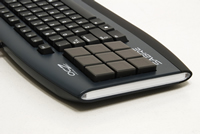
Art Lebedev Studio created a whirlwind of excitement when their Optimus Maximus keyboard concept surfaced in 2005. The peripheral touted a full set of OLED (Organic Light Emitting Diode) buttons that were 100% user-customizable and downright amazing-looking.

I had the opportunity to see it in person at the 2008 Consumer Electronics Show as well as get some hands-on time with its little brother, the Mini Three. The hype was real and the technology very cool indeed. I wanted one, as did nearly everyone else -- that is, until the company revealed how much it would cost. Priced at over $1,400, the Optimus Maximus remains more fantasy than reality, as the closest most users will come to it are the photos and videos available online.

Fortunately for those interested in OLED Keyboard technology, Art Lebedev isn’t the only player around. OCZ Technology recently released their Sabre OLED Gaming Keyboard, which features a bank of nine programmable OLED keys and a significantly cheaper price tag.

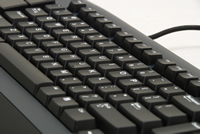
Aside from the bank of OLED keys, the Sabre is a pretty standard 103-key unit. The board’s bezel is dark gray with a smooth black wrist rest area lining the lower portion. There is no real wrist rest which may take some time to get used to if your previous keyboard had one.

The Sabre arrived in a standard retail keyboard box, with a quick rundown of some prominent features printed on the front as well as a complete list of specifications on the reverse. Inside we found the keyboard itself along with a Quick Start Guide. Drivers (both 32 and 64-bit flavors) as well as the User Manual come pre-loaded on the keyboard’s 128 MB internal flash memory.

The nine programmable OLED keys are positioned on the far left of the keyboard. Each has a resolution of 64 x 64 pixels, 2000:1 contract ratio, 160-degree viewing angle and a brightness rating of 100 nits. Unlike the Art Lebedev offerings, the Sabre's OLED keys are not full color and only display in yellow, so don’t expect many Ooh’s and Ahh’s from onlookers.


The top of the board has a single USB cord to connect to your computer. There are no media keys, fancy LCD screens or USB ports here, but OCZ hopes the OLED keys make up for these missing features.

Instead of using backlit keys like many enthusiast keyboards on the market, the Sabre features a blue LED sidelighting effect designed to illuminate the areas on either side of the keyboard.

Two rubber feet on the underside of the board near the bottom help to keep the unit in place during use. There are also two retractable feet near the top should you prefer to type on a slight incline.

Some readers might recognize this board as the "United Keys OLED Keyboard". According to their website, Foxconn manufactures this board and OCZ has purchased the licensing rights and is marketing it as their own. This is common practice among many accessory providers and is nothing to be concerned with. United Keys does sell this board under their brand as well, but it is $45 more expensive than OCZ’s offering, so there would be no reason to select it over the OCZ-branded product.

F-Secure Internet Security 2010 Review

F-Secure Internet security 2010-main

F-Secure has released a new Internet Security 2010 software featuring redesigned interface coupled with very easy to use parental control features that you can setup during your initial installation while F-Secure is downloading updates in the background, this new build is easy on system resources and F-Secure claims to have 60% faster virus scans than the previous version.

Our installation of the F-Secure Internet Security 2010 on a test PC having C2D E6320 and 2.5 GB RAM was finished in around 1 minute, after a restart and verification of the key, it showed the programs requesting Internet access like Steam client and others installed in our system, after clicking allow couple of times we were good to go , downloading updates and further installation took another 15 minutes on our 1 Mbps connection.

The parental control settings in the F-Secure 2010 Internet security are one of the easiest out there, so lets have a look at the parental controls

F-Secure Internet security 2010-Parental control

Browsing modes

F-Secure Internet security 2010-2

You can also set time limit on the daily and weekend Internet browsing.

F-Secure Internet security 2010-3

Better Content blocking based on cloud computing technology

F-Secure Internet security 2010-4

System Scanning- Virus, Spyware removal

The overall speed of the scanning was good, our almost full 160 HDD including lots of software, games, applications, was scanned in 1 hours and 4 minutes, however there isn’t a pause scan option while scanning the hard drive so if you stop the scan, you would have to run it again from scratch. Pause scan option is particularly good when you just want to Hibernate your PC after pausing the scan and then turn it on later to resume scan from where it left, very helpful these days as HDD capacities have grown manifolds and scanning takes time. It detected all the viruses we have in our virus-pendrive with ease and the Anti-Spyware was pretty hard on the advertising agencies, and detected their tracking cookies as Spyware.

Full System Scan in Action - no pause button

F-Secure Internet security 2010-scan

Other thoughts: After installation of F-Secure our Local Area Network stopped working, we weren’t able to access files of our test PC from other PCs on LAN, Even after configuring again with the Windows “Set up a home or small office network” it didn’t work, nor does it showed any warnings or asked for permission. I have to set this up manually by going to Settings -> Firewall -> Firewall Settings -> Trusted Network Adaptor -> Select your Network Interface Card.

It was not able to detect our LAN IC on our Intel DG965RY motherboard, after selecting the network IC, local network access was restored. This might be a problem specific to our system.

Pros and Cons of F-Secure Internet Security 2010

Pros :

  • Very Easy on System Resources
  • Great Design and User Interface
  • Provides superb protection, it was able to detect and clean 4 viruses on our test system, which up to date free Avira couldn’t.
  • Easy to Set-Up
  • Good and easy to use Parental Control Settings
  • Browsing Protection
  • Statistics: provides quick overview of security history
  • Anti-Virus, Anti-Spyware and Anti-Spam protection in one package
  • Compatible with Windows 7, Windows Vista and Windows XP

Cons:

  • While performing full system scan, System got noticeably slow and CPU usage went to as high as 75%, 10% being average
  • No Pause Scan button
  • Didn’t Detect LAN card automatically (this could be specific to our system)

Download F-Secure Internet Security 2010 trial

Who needs Chrome OS on a netbook when you have Android

acerandroid

When Android first debuted, there was talk about how great it would be on a netbook. Then a couple of companies mentioned that they were planning on shipping a netbook with Android inside, but we haven’t really heard much more on the subject lately. Now we have word of the Acer Aspire One D250 Android, which not only boots Android, but also dual-boots XP.

acerandroid

Unfortunately, as of this writing the Android OS implementation on the Acer is a far from solid. A review over at eprice.com mentions that it lacks the Android Market, and doesn’t seem to offer any other way of getting Apps into the OS. That said, shutdowns and boot ups are pretty fast, so for now the OS does seem to be performing well as an OS.

dualbootandroid

The Acer Aspire One D250 Android seems to be a pre-production model right now, so hopefully some of the above issues will be worked out when it finally ships–if it ships.

Intel 4 Screen Laptop, Codenamed: Tangent Bay

tangent_bay_500x375

Intel has demoed a new multi-screen prototype codenamed "Tangent Bay" which boasts of 4 displays for advanced and new age multitasking, three OLED displays are above the keypad and can be used easily with touch controls/gestures, they interact directly with the Laptop’s main display.

tangent_bay_500x375

DirectX 11 Graphic Cards Now Available: ATI HD 5870/5850

ATI 5870

The next generation of graphic cards ATI Radeon HD 5870 and HD 5850 boasting of DirectX 11 support and ATI Eyefinity technology are now available, these video cards support upto 3 monitors and resolution upto 2560×1600 per display, 6 screen support will eventually come out in November with a new version of 5870 graphics card with 6 mini display ports. HD 5800 series of graphics cards also supports dual, triple and quad ATI CrossFireX multi-GPU technology.

ATI 5870

ATI HD 5870 and 5850 GPUs are developed on the advanced 40nm fabrication technology containing massive 2.15 billion transistors and additionally the streaming processor units, texture units and ROPs are almost doubled in comparison to ATI 4870 and 4850 GPUs respectively. My 6 months old Dual Sonic 4870 graphics card

is already feeling older, I might even sell it to make way for new GPU chips, the performance that these cards provide and their price point makes them the only graphics card you should buy if you are in a market for a higher end graphics solution as of now.

Power consumption

Apart from double performance ATI has attained another feat in power consumption, 5870 graphics card consumes only 27 watts at idle and 188 watts at full load when used with single display whereas 4850 consumes 27 watts at idle and 170 watts at full load with single display, with two displays the idle power will be doubled.

Price of ATI HD 5870 and HD 5850

The new video cards are priced at sweet $259 for HD 5850 and $379 for HD 5870, the prices will come down a bit once ATI releases new cards in November or if NVIDIA comes out with its lineup of DirectX 11 cards.

India Price would be around Rs 17,000 for HD 5850 and Rs 25,000 for HD 5870

Full Features of HD 4870 - AMD Website

Full Features of HD 4850 - AMD Website

ATI Radeon HD 5870 Review

List of DirectX 11 Games

Nokia Booklet 3G Mini Laptop

STUTTGART, Germany – Since news of the new Nokia Booklet 3G first emerged early last week, the mini laptop PC has become the most keenly discussed Nokia product we’ve ever written about here on Conversations, with a continuous stream of comments flowing in and interesting debates sparking off right here. One of the most avid areas of anticipation is the full specification list, which has now been released here at Nokia World 09.
Now, we’ve always said we’re not hardcore number lovers, but concede that with the Nokia Booklet 3G pouring over specs is a necessary vice. So click through for our unashamedly long list of full specifications for Nokia’s upcoming Booklet 3G.
Nokia Booklet 3G overview
All day computing
Up to 12 hours of usage time
Last for a heavy work day
Windows 7 and Intel Atom processor
Charge it and go – no need to worry about taking your charger with you
Sleek, robust design
A stylish, premium design with a chassis made from a single piece of machined aluminum
19.9 mm thin
Three different colors at launch: black, ice (white) and azure (blue)
Seamless connectivity
Inbuilt WLAN and WWAN enable connectivity to the Internet anywhere a WiFi or cellular network connection is found
3G/ HSPA with hot swappable simcard
Sync easily with your Nokia handset
Integrated Ovi Suite enables easy sync of calendar contacts, media with your device and the cloud
Integrated Nokia services
Ovi Suite 2.0
Nokia Music for PC
Ovi Maps
Social Hub – keeps track of your social software feeds in one spot and serves as a SMS sender
Nokia software updater
Nokia Booklet 3G full specification
Dimensions
Weight (max) 1250 g
Dimensions (max) 264 x 185 x 19.9 mm
CPU and Chipset
Intel Atom Z530, 1.6 GHz
Intel Poulsbo US15W, fanless design
Memory and Storage
RAM: 1 GB, DDR2, 533 Mhz, soldered down
HDD: 120 GB, 1.8”/5mmH/SATA, 8 MB cache, 4200 RPM
Display
10.1”, 1280×720 pixels, glass window
Battery
16 cell, 56.8 Wh, Li-Ion prismatic, removable design
Connectivity
802.11 b/g/n, 2T2R
BT 2.1 + EDR
Inbuilt 3G modem (data calls only). Different variants: WCDMA: 850/1900/2100 or WCDMA 900/2100 or no modem.
All modem variants have GSM and GPRS
Assisted-GPS
I/O ports
1 x HDMI 1.2 out
3 x USB 2.0
1 x headphone out (OMTP 3.5 mm) – with OMTP headsets also functions as audio in
1 x DC-in
1 x SD card reader
1 x SIM / USIM slot
Camera and microphone
1.3 MP front facing camera with integrated microphone
Keyboard
Frame keyboard
2 physical layouts: US (78 keys, 17 mm pitch, 1.8 mm stroke) and UK (79 keys, 16.7 mm pitch, 1.8 mm stroke)
Other
Accelerometer
Inbox contents
Nokia Booklet 3G
BC-1S battery
AC/DC power adapter
Quick setup guide and warranty instructions
Headset WH-205
USB charging multi-cable CA-126
Software
Operating System: Windows 7 Starter Edition, Home Premium or Professional
MS Office Small Business 60 day trial
MS Internet Explorer 8
HDD protection utility, Hotkey utility , Knock Control utility, Power Profile Switcher, Battery Life utility
Nokia Update Manager
Ovi Suite
Ovi Maps Gadget
Social Hub
F-Secure Internet Security 2010 trial

Ten reasons Linux is the best choice for netbooks

Ten reasons Linux is the best choice for netbooks

Those who believe Windows is the best netbook operating system are plain wrong, because Linux is a much better fit, says Jack Wallen.

I have read countless Microsoft-funded studies that try to persuade me Windows is already dominant for netbooks. According to these studies, Linux might as well just take a curtain call because its netbook act is over.

But that picture is simply not true. If it were, Asus would not be selling netbooks with Linux preinstalled.

Linux is not going anywhere but up in the netbook market. Here are 10 reasons that justify my position.

1. Netbook hardware is the perfect match for Linux
One of the biggest arguments people use for preferring Windows to Linux is: "You can't play games with Linux." But you cannot play games on a netbook either — apart from web-based games.

There are many other types of software you cannot or will not use on a netbook. No Photoshop, no QuarkXPress, and none of those proprietary apps that people seem to need to do their day-to-day business. Netbooks serve a small purpose — to let you get online — and they do it well.

Linux is the perfect networking operating system. It plays well with other operating systems, it is secure and fast. But one thing any purchaser of a netbook should know is that space is prime.

Although a fresh installation of Eeebuntu might take up nearly 2.8GB, you can quickly reduce its size by removing applications you do need using the Synaptic package manager. Windows XP with SP2 takes up 2.5GB so the difference is minimal.

2. Netbooks require a secure operating system
If you are using Windows XP on an ultra-portable piece of hardware, you are a target for viruses. And you will not be installing Norton or McAfee on your netbook — especially if you are using a flash-based storage netbook.

With Linux, you will not need those tools in the first place. Your Linux-based netbook can travel anywhere you want and you will not have to worry about picking up viruses or spyware as you would with a Windows-based netbook.

3. The interface is key
If you have limited screen size, why not use a desktop interface designed for it?

Read this

Ten reasons businesses should buy e-readers

E-readers could be about to open a new chapter in enterprise efficiency, says Jack Wallen...

Read more +

Instead of using the standard desktop metaphor, the Eeebuntu Netbook Remix desktop introduces an interface that is perfectly suited for the desktop size offered by netbooks. This interface makes the netbook experience far more efficient than Windows.

It may not be what you are used to. But it is cleaner, faster, and more user-friendly, and will soon become familiar to you.

This interface is not different just for the sake of being different. It is obvious it was well thought-out and aimed at the new PC user as well as at the new netbook user.

4. Your netbook can be more than just a slow laptop
When I bought my last netbook, one of the first things I did was install Eeebuntu over the purchased Xandros Linux. Why did I do this? Because Xandros is a limited operating system, whereas Eeebuntu is a full-blown Linux distro that happens to install on an Eee PC.

When using Eeebuntu on a netbook, you really feel like you have the power of a full laptop at your fingertips. You can even install a full-blown Lamp — Linux, Apache, MySQL, PHP — server on your netbook if you like.

5. Linux will keep costs down
One of the reasons why netbooks are so popular is that they are cheap. Where, other than eBay, can you find a PC for near or under $300 (£200)? And soon, the magical $200 (£120) price tag will be reached when Freescale releases its Linux-only ARM-based netbook.

Remember, Linux is open source, so any software you are installing will be free. Because of the cost of the Linux operating system, the cost of netbooks can continue to fall.

If Microsoft were to attempt to use Vista or Windows 7, the cost of your average netbook would not fall. What about any extra software...

ARM targets Intel with 2GHz multicore chips

  • Image

Cambridge-based chip company ARM has today announced the development of dual-core, quad-core and eight-core Cortex-A9 processor designs, explicitly aimed at markets currently served by Intel's x86 chips and IBM's PowerPC.

"This is a huge departure from what we've done in the past," Eric Schorn, vice president, marketing for ARM's processor division, told ZDNet Asia, ZDNet UK. "We really wanted to take off the handcuffs and see what could be done with performance, performance, performance."

The new designs, available in two variants optimised for low power consumption or high performance, are intended for use by companies building their own chips. ARM claims that the new processors, which can run at up to 2GHz, are up to eight times more efficient than Intel's low-power chips in terms of performance per watt, with the high performance part running at five times the throughput of Intel's Atom chip for similar power levels.

The low-power part delivers twice the performance at a quarter the power, according to the company's published benchmarks.

"The sweet spot for most customers is dual-core," said Schorn, "but the base design can go up to quad-core and some partners are already building those. Eight way is coming. Everyone's high-end roadmap is putting down more cores, and we do that. We're headed in the direction of Intel's mainstream processors. We have other plans that surpass the current performance, and we'll intercept Intel in a high-margin area, not just with Atom."

The dual-core parts, which are designed to be made using fabrication company TSMC's 40nm chip manufacturing process, can be licensed now with delivery of the finished designs to partners in the fourth quarter of 2009. ARM itself will be making evaluation chips available to partners and software designers in the first quarter of 2010.

To date, ARM has mostly partnered with companies making components for wireless, consumer and automotive equipment. However, this new design will see new enterprise partners coming on-board. In particular, Schorn said that the high-performance multi-core ARM approach would open up parts of the market currently dominated by companies with large proprietary design teams--"blowing the doors off that by offering freely available IP", as he put it.

"Enterprise is a key opportunity", continued Schorn. "Our existing partners are executing extremely well in their existing markets. We have a new licence signed, with a number in the pipeline, and enterprise is well represented. The design is applicable to all sorts of servers, is cache-coherent so can do SMP, and will be wonderful for Linux, Apache and other parts of the enterprise stack".

ARM announced on 14 September that it had joined the Linux Foundation.

ARM also intends the multicore Cortex-A9 design to be used in consumer equipment. "If you look at the high end of embedded systems, netbooks and the like, there's not much innovation relative to the mobile phone area. We want to take the rate of change of mobile phone design and innovation into other areas. Consumers will see a lot more diversity at a lot faster pace," said Schorn.

The company says it gets its claimed level of performance at low power by having very finely tuned control over the different areas of the chip, with seven power zones able to turn off parts of the cache, maths, media and general processing areas automatically when idle.

Schorn said that he was not concerned by ARM's lack of Windows 7 compatibility. "We don't have a Big Windows announcement to make. We do have staff at Redmond, and we'll see what the future will hold. Talking about Windows is the wrong way of looking at it.

"If you look at what's happening with web-centric, internet-oriented demographics and things like Java virtual machines, just-in-time compilers, widgets and so on, it's not architecturally dependent. Look at Samsung with Yahoo widgets in its televisions. I don't see the need for Big Windows on your television."